Connect Shopify
Connect your Shopify store to your Filum workspace once. Filum then keeps a live copy of your products, orders and discounts, and your AI agent can use the store in chat: it finds products, shows prices, stock and discount codes, and creates a draft order with a Shopify checkout link.
It takes about five minutes: install the Filum app on your store, then connect it to your workspace in Filum.
Before you start
- In Shopify, you need to be the store owner, or a staff member with the Manage and install apps and channels permission.
- In Filum, you need to be a member of the workspace you're connecting.
- Use a computer, signed in to both Shopify admin and Filum (cx.filum.ai) in the same browser.
Step 1. Install the Filum app on your store
Open the Filum app on the Shopify App Store at apps.shopify.com/filum, click Install, choose your store and approve the access Shopify shows you. The app isn't listed in App Store search, so use this link.
| Access | Why |
|---|---|
| View products | Product names, photos, prices and stock, so the AI agent can show and recommend them |
| View orders | Orders and who placed them, for customer history, segments and revenue analytics |
| View discounts | Active discount codes, so the agent only offers codes that really exist |
| Edit draft orders | Creates a draft order with a checkout link when a shopper asks to buy. Filum never changes your products, orders or prices |
Shopify then opens the Filum app in your store admin (Apps → Filum). It shows Store connected and starts copying your products, orders and discounts.
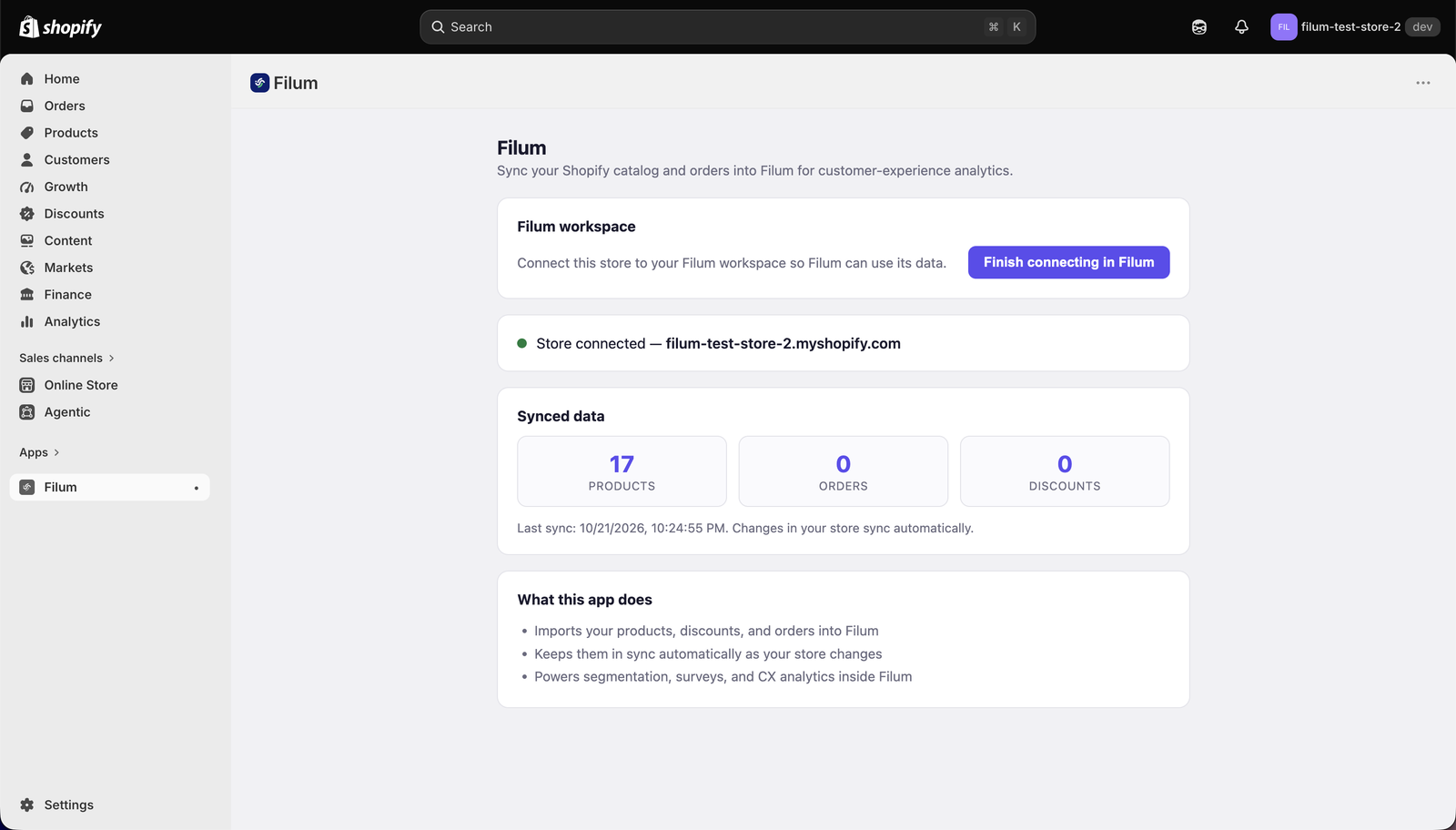
Step 2. Connect the store to your Filum workspace
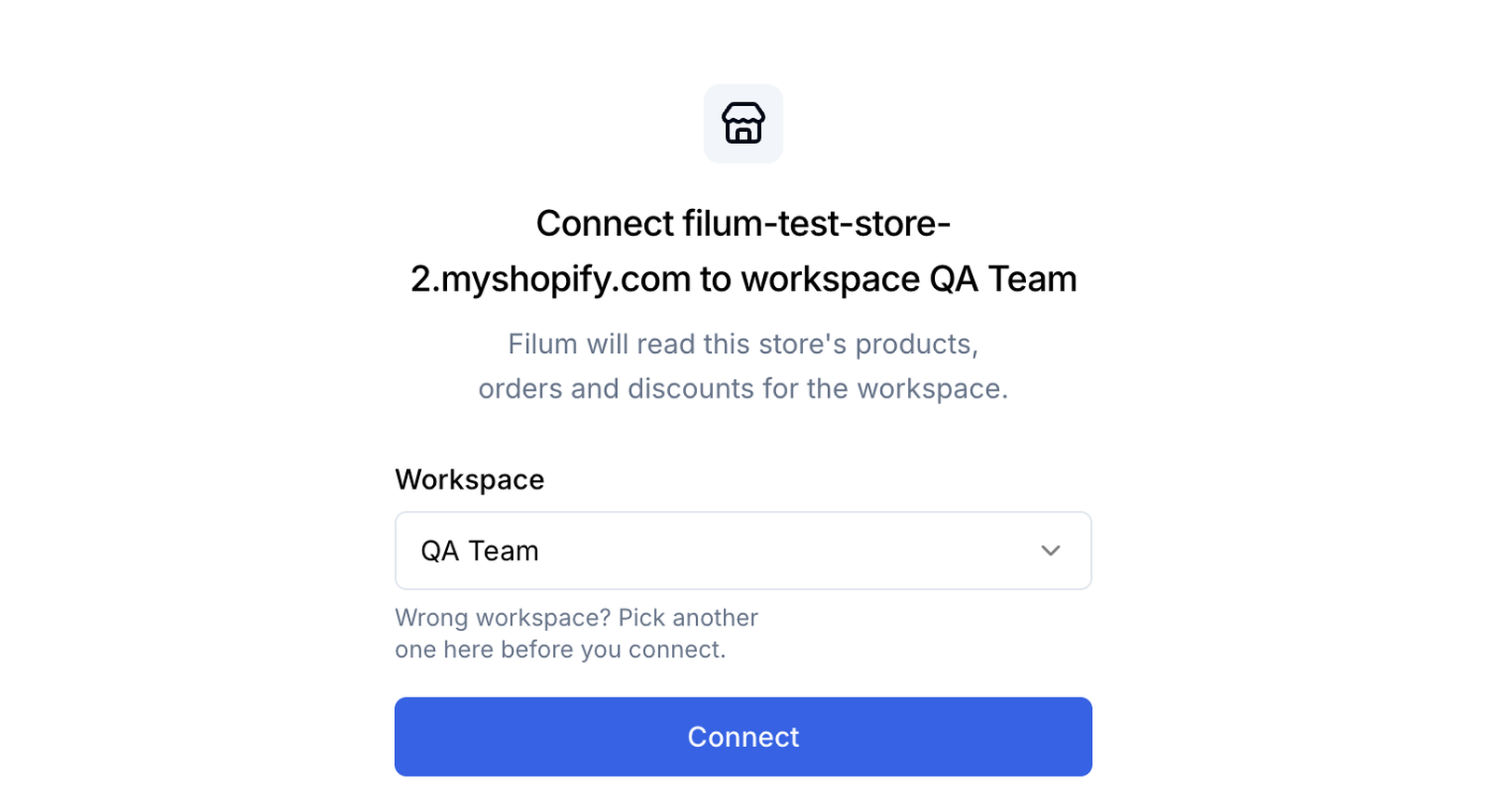
On the Filum app page in Shopify admin, click Finish connecting in Filum. Filum opens in a new tab and asks which workspace the store belongs to. Check the store and the workspace (pick another one if you're in several), then click Connect.
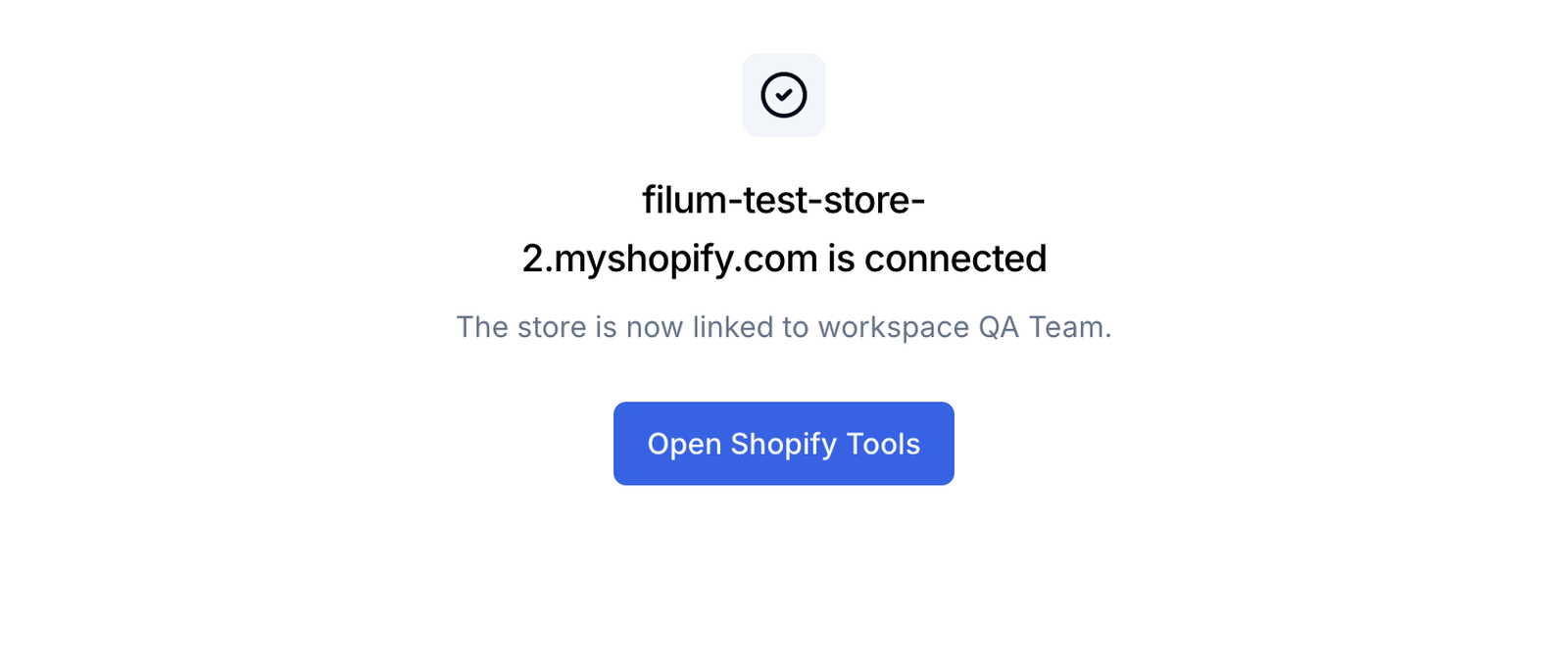
Filum confirms the store is connected.
- "Install Shopify Tools in this workspace first": in Filum, open Connectors, install Shopify Tools from the App Store tab (there's nothing to fill in), then click Finish connecting in Filum in Shopify again.
- "This link has expired": each link works once, for 10 minutes. Click Finish connecting in Filum in Shopify again.
Step 3. Check the connection
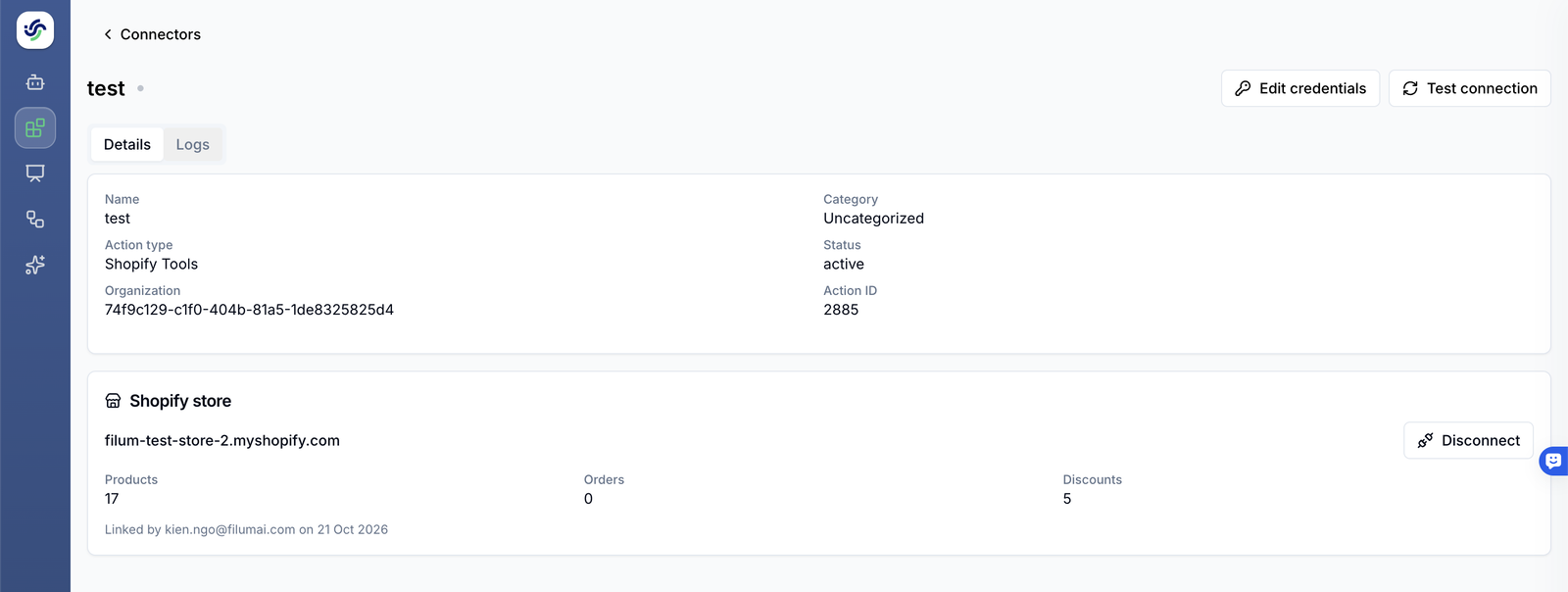
Click Open Shopify Tools. Filum shows the connected store, how many products, orders and discounts were copied, and who linked it.
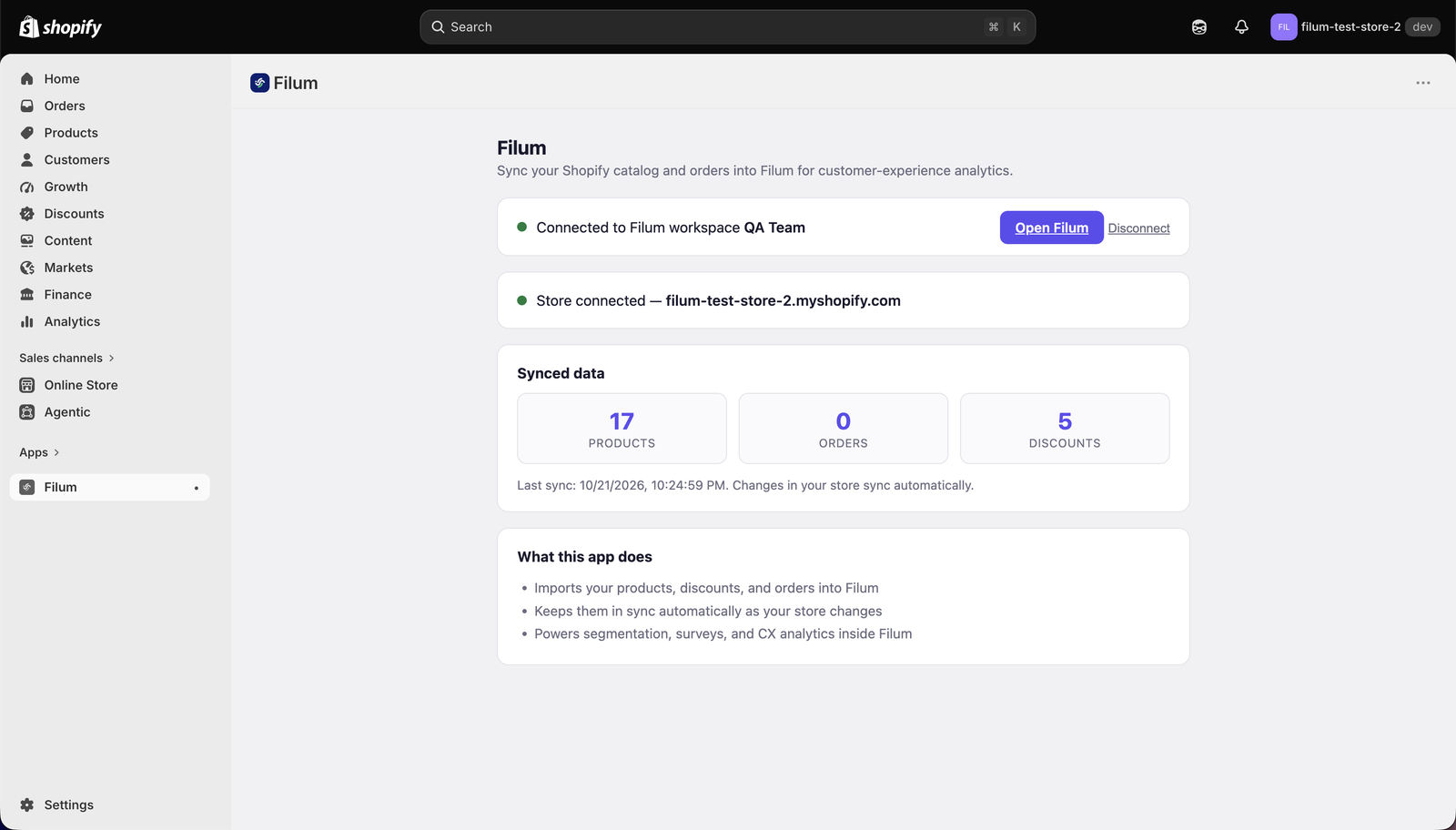
Back in Shopify admin, the Filum app now shows the workspace the store is connected to.
Step 4. Let your AI agent sell from the store
- In AI settings → Tools, add the shopify tool from Shopify Tools. It's one tool that searches products and collections, reads product details and discounts, and creates draft orders.
- Open your AI agent and turn on the shopify tool.
- Add a Shopify skill to the agent so it knows how to use the tool well. Your account manager can give you a ready-made one that shows products as cards and orders as a table with the checkout link.
Shoppers can then ask things like "Do you have snowboards?", "Any discount codes right now?" or "I'll take one, my email is …", and get product cards and a checkout link in the chat.
The agent only says what your store returns: it never makes up products, prices, stock or discount codes. When a shopper wants to buy, it creates a draft order and sends Shopify's own checkout link. The order becomes a real order only when the shopper pays.
What syncs, and how often
- Products, orders and discounts: everything on the first copy, then each change within seconds.
- A safety check every hour: it catches anything Shopify failed to send.
- Not synced: your theme, your pages and your payment settings. Filum never sees card details.
Your data
- Your store's data is used only for the Filum workspace it's connected to.
- The access key Shopify gives Filum for your store is stored encrypted.
- You can disconnect at any time (see below). Filum stops syncing straight away. When you uninstall the app, Shopify asks Filum to delete your store's data about 48 hours later, and Filum deletes all of it.
Disconnect
- Unlink the workspace but keep the app: click Disconnect on the Filum app in Shopify admin, or on the Shopify Tools connector in Filum. You can link it again later, to the same or another workspace.
- Remove the app: in Shopify admin, go to Settings → Apps, open the ••• menu next to Filum and choose Uninstall.